How to use
A quick tour of what Poketari can do, with screenshots.
Find lotteries
Everything in this part works without an account.
1The lottery list
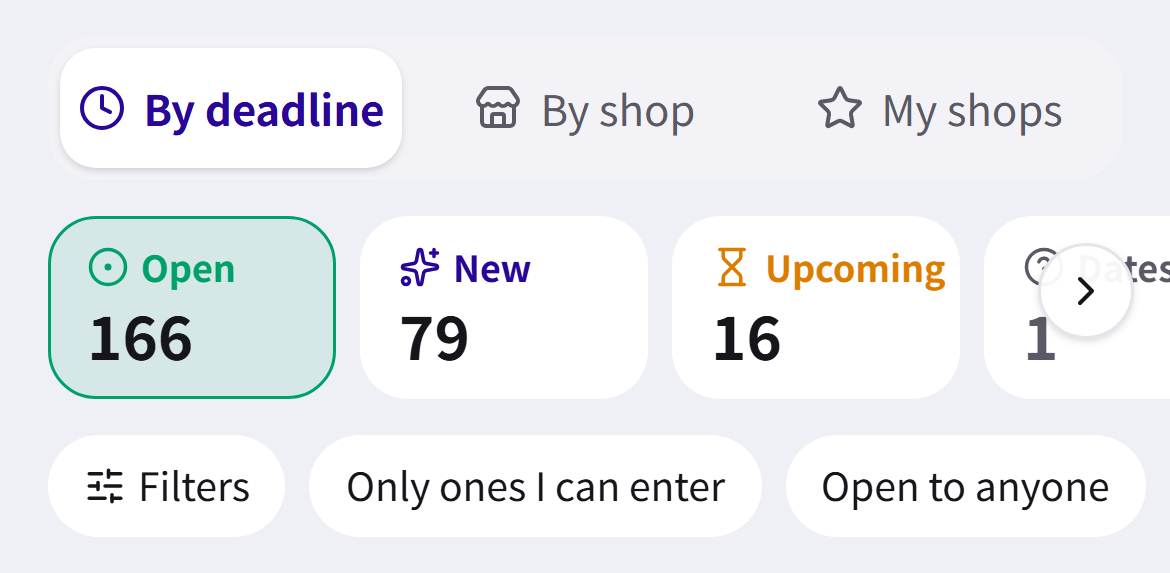
The home page lists Pokémon Card lotteries you can enter now, closing soonest first.
Switch between “Open”, “New”, “Upcoming” and “Closed”. “New” means listed within the last 36 hours; “Upcoming” means entries open shortly.
2Search and filter
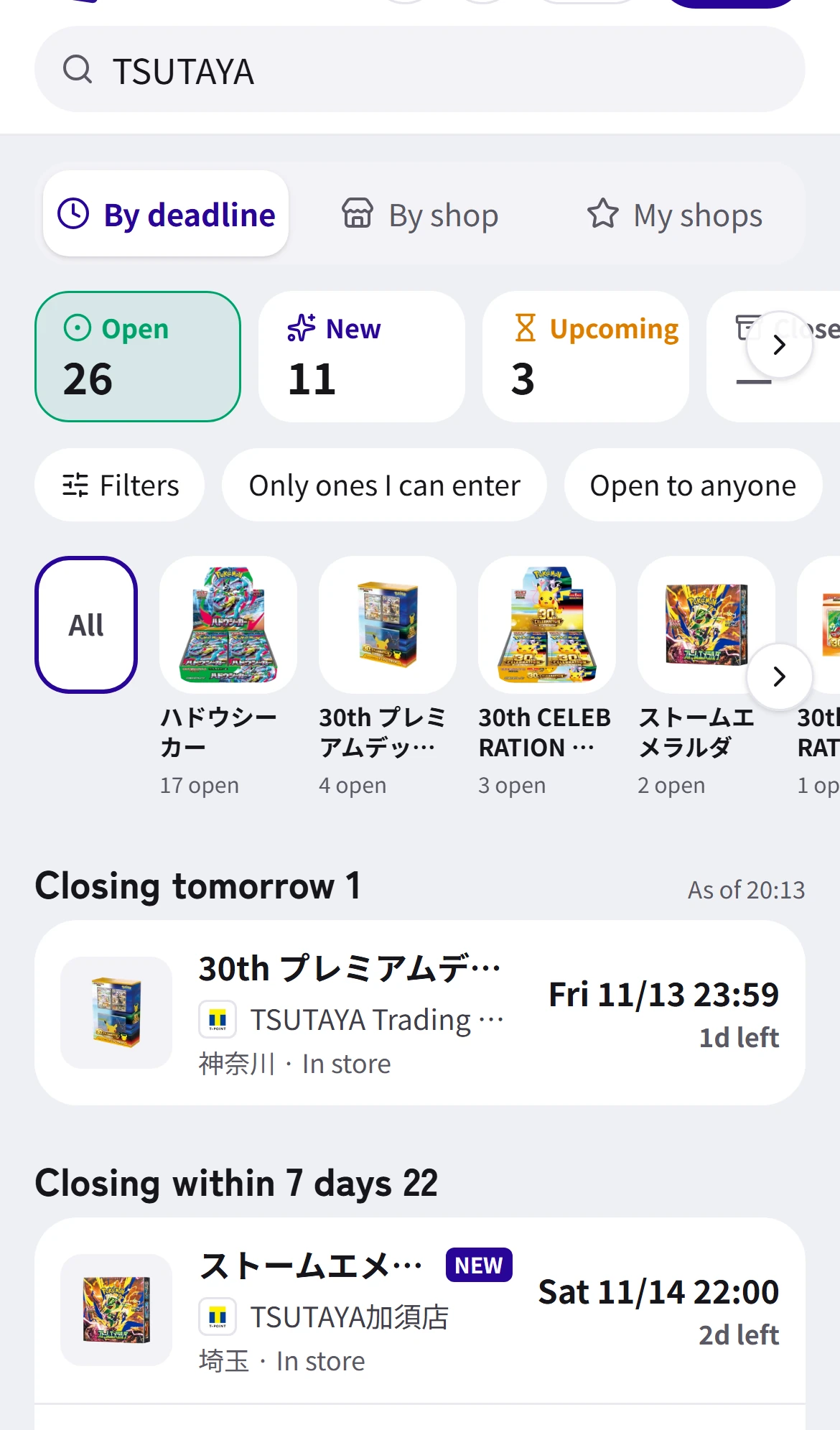
1Type a product or shop name in the search box at the top to see just those lotteries. Shop names also match their Japanese reading.
2“Filters” lets you choose a region, How to enter (Online or In store) and “Open to anyone”.
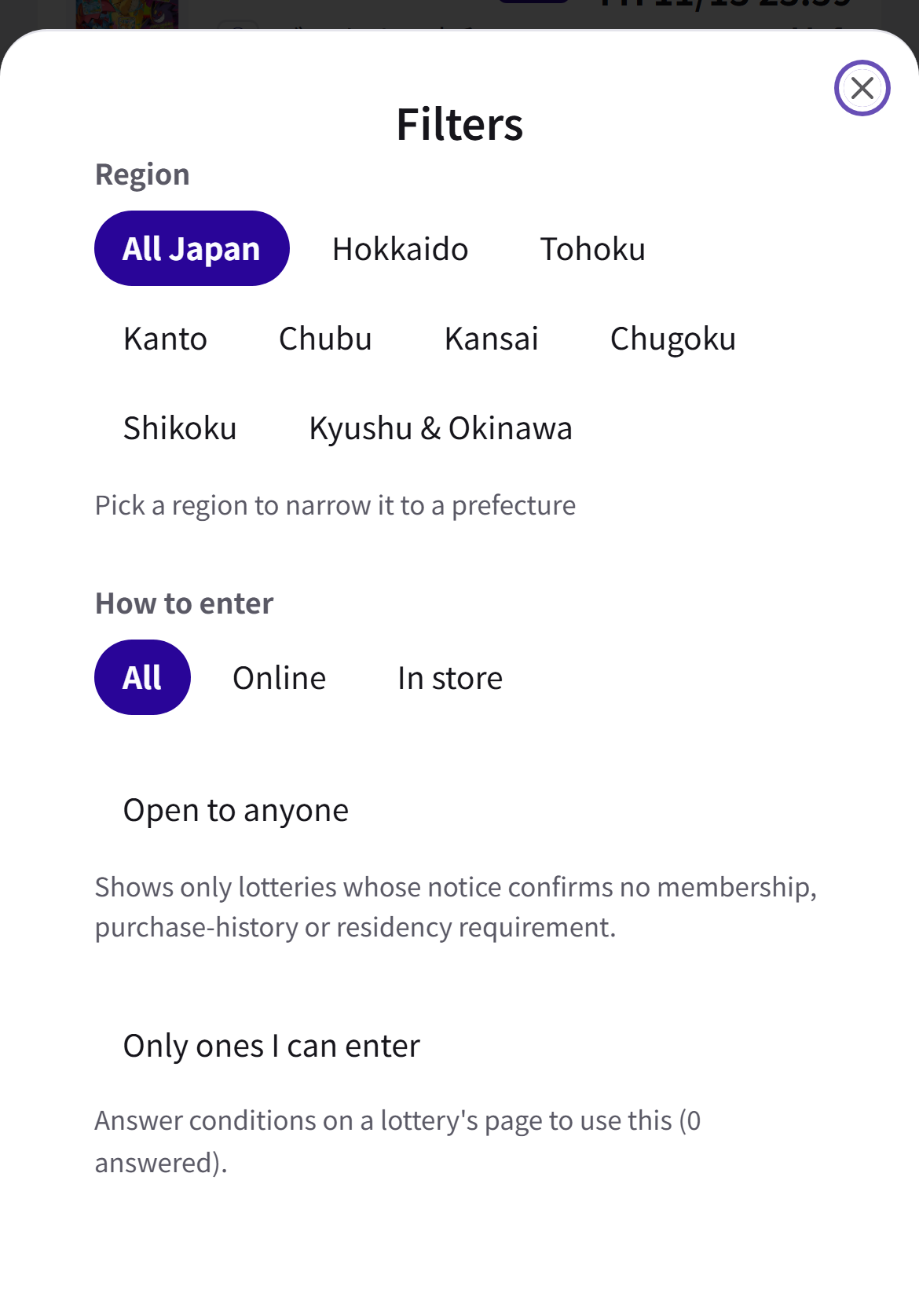
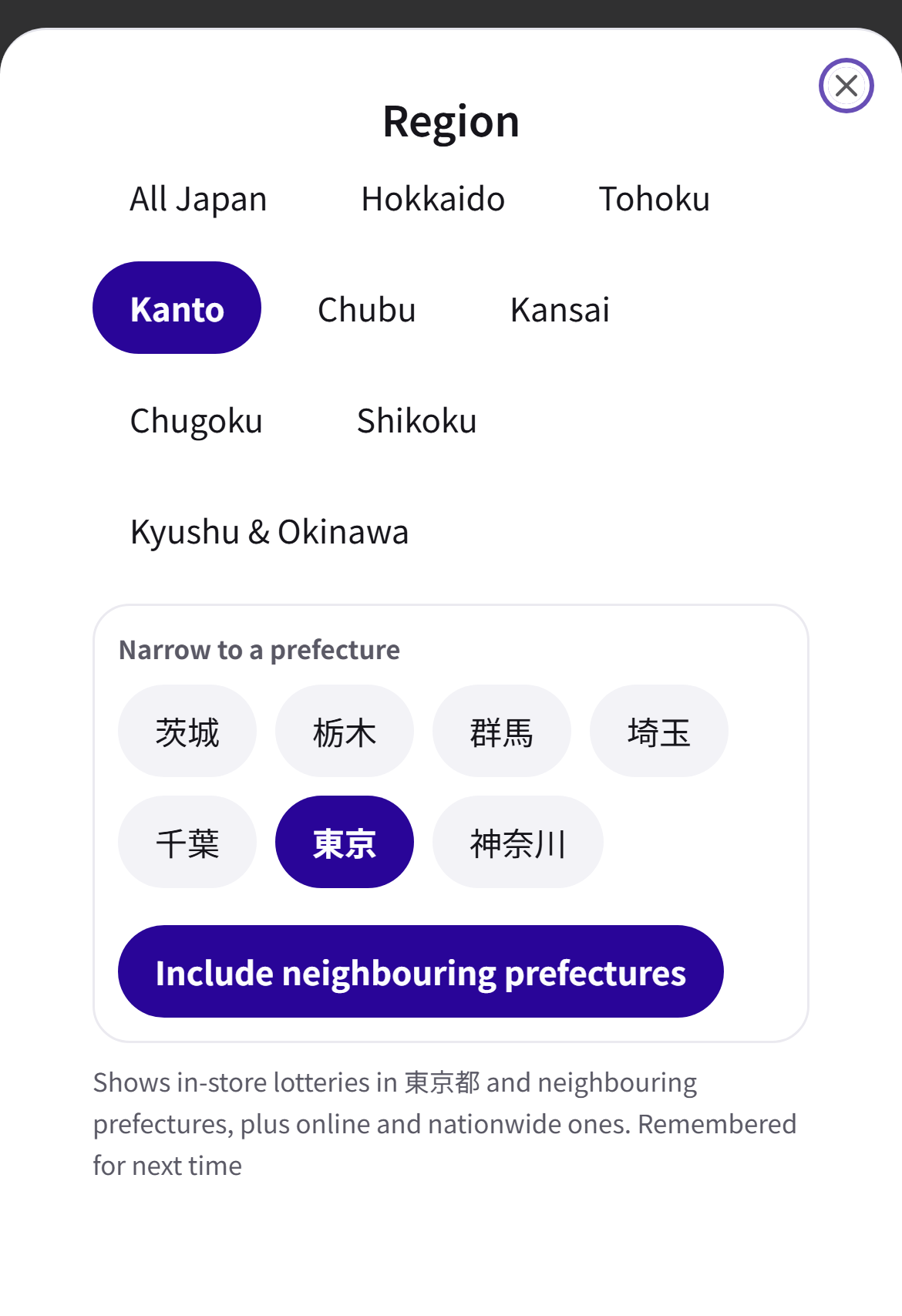
3After picking a region you can narrow to a prefecture; turn on “Include neighbouring prefectures” to include neighbouring ones. Your prefecture is remembered next time.
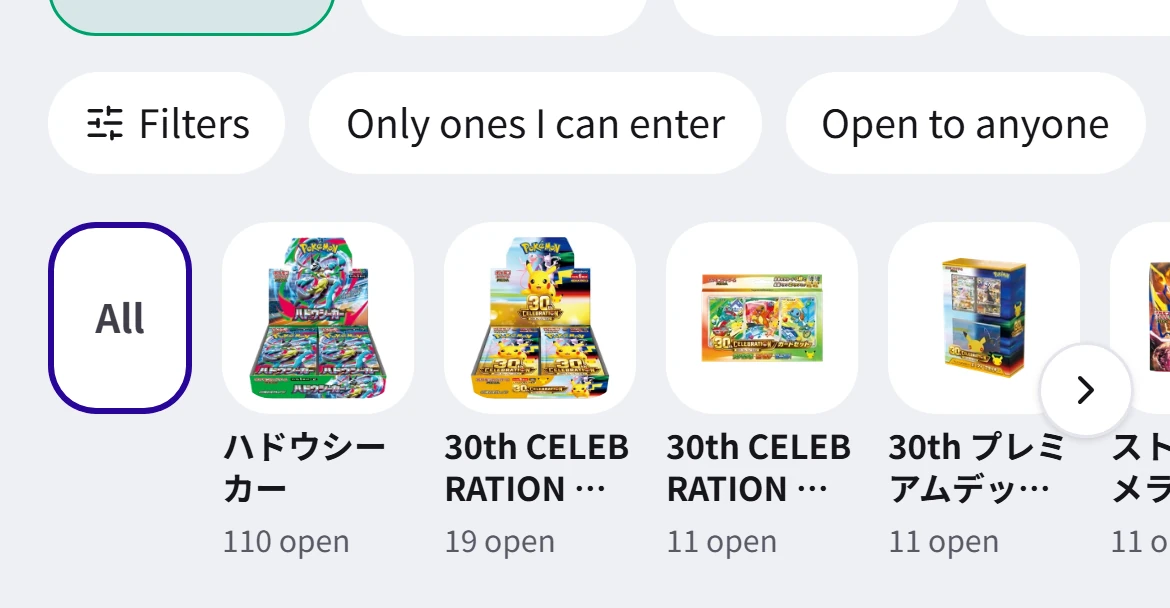
4The buttons above the list filter in one tap: “Open to anyone” needs no membership or other qualification, and “Only ones I can enter” matches the conditions you answered on lottery pages. Tap a product image to see only that product.
3Browse by shop
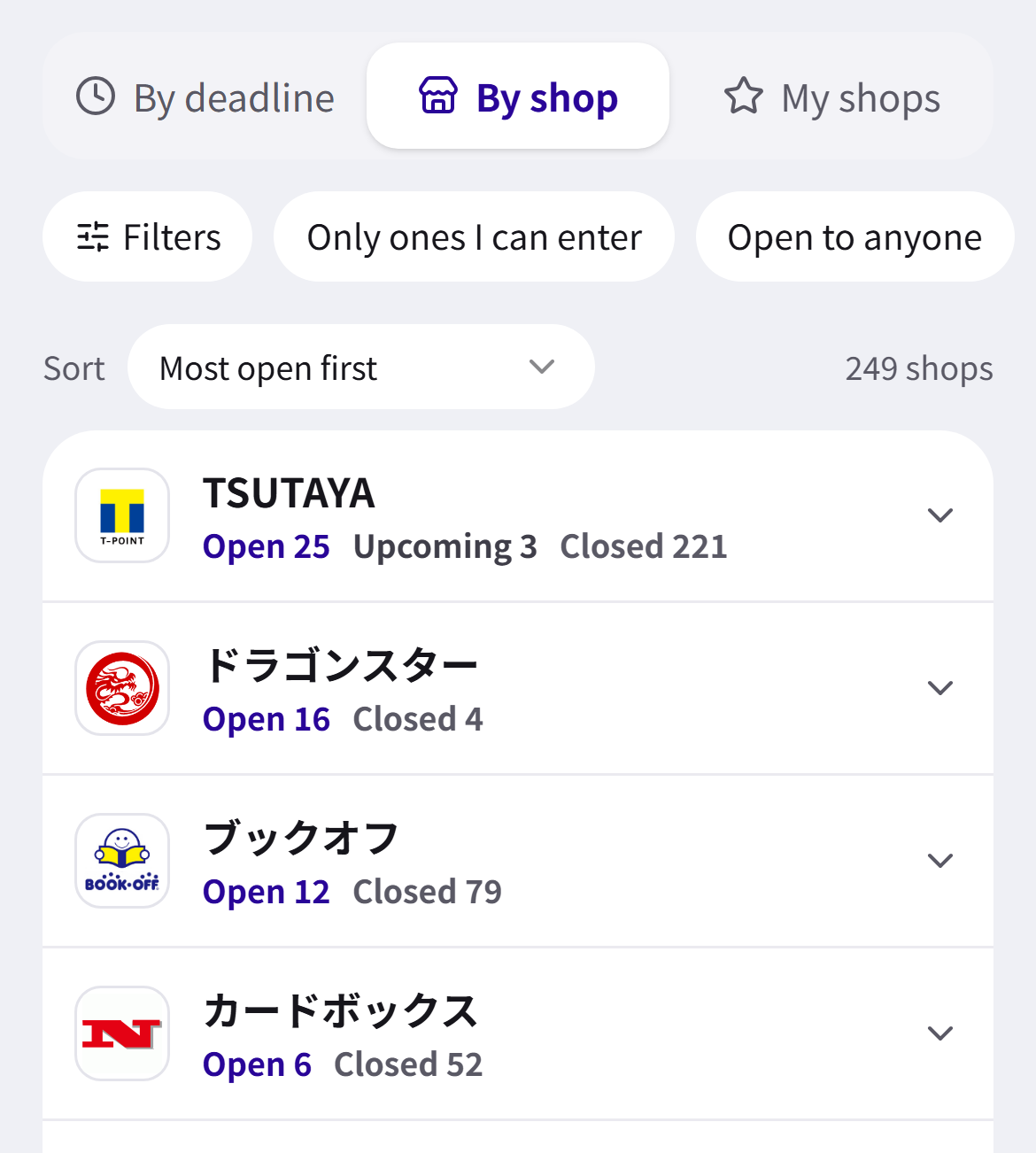
1“By shop” shows how many lotteries each shop has open, upcoming and ended. Change the order with “Sort” and tap a shop to expand its lotteries.
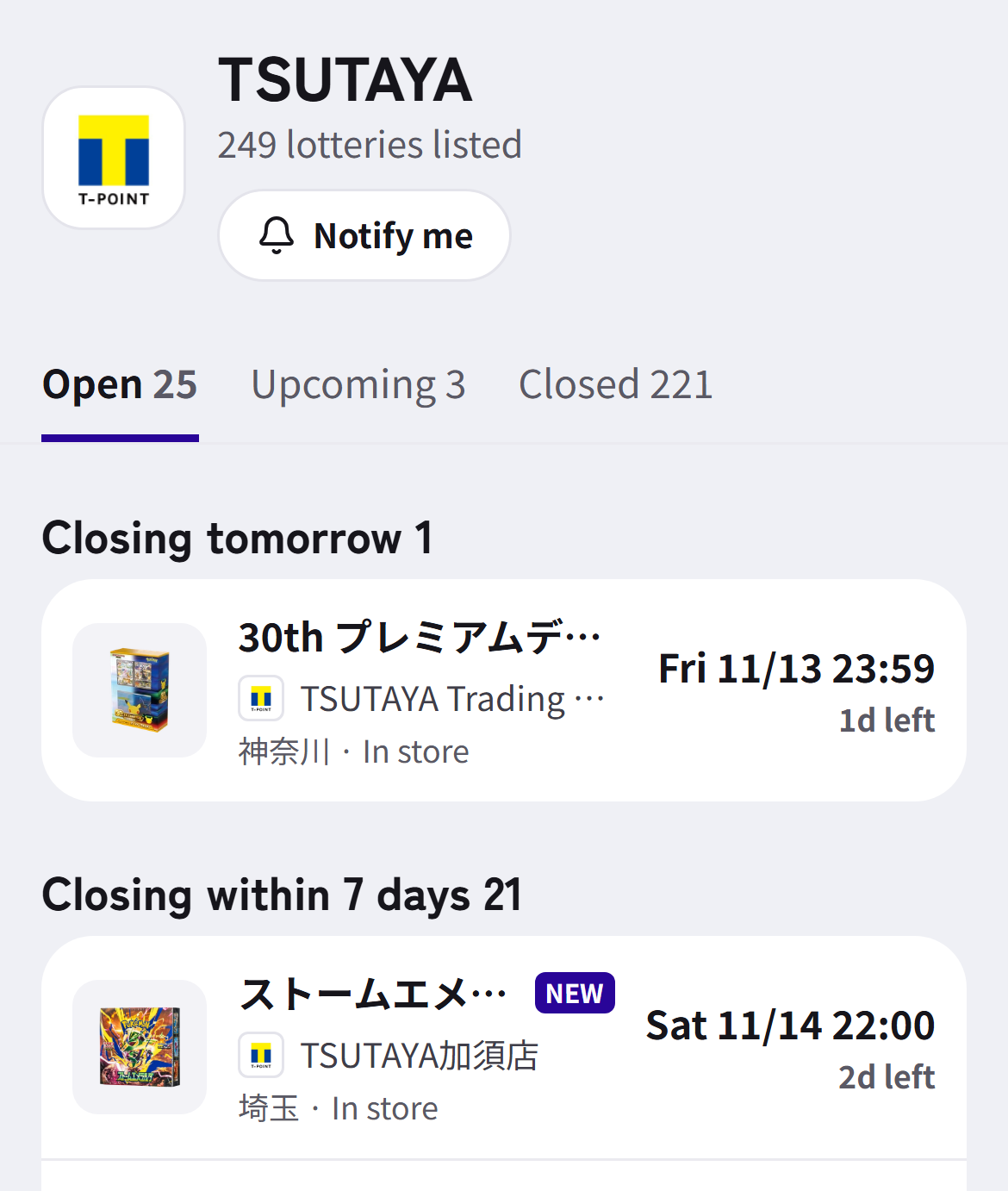
2A shop page gathers all of that shop's lotteries. Tap “Notify me” to be notified when it posts a new one.
4Read the details
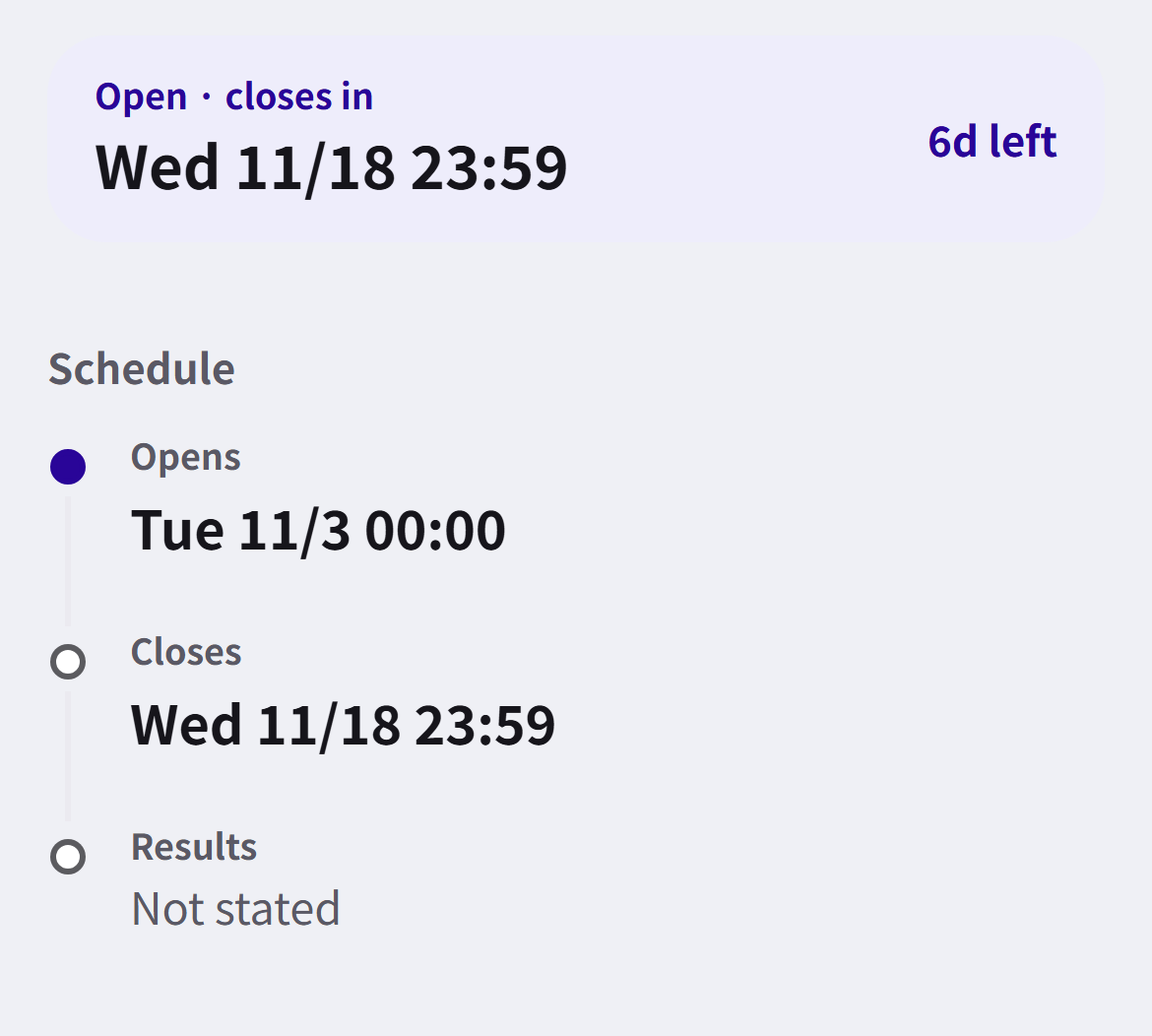
1Open a lottery to see the time left and when it opens, closes and announces winners.
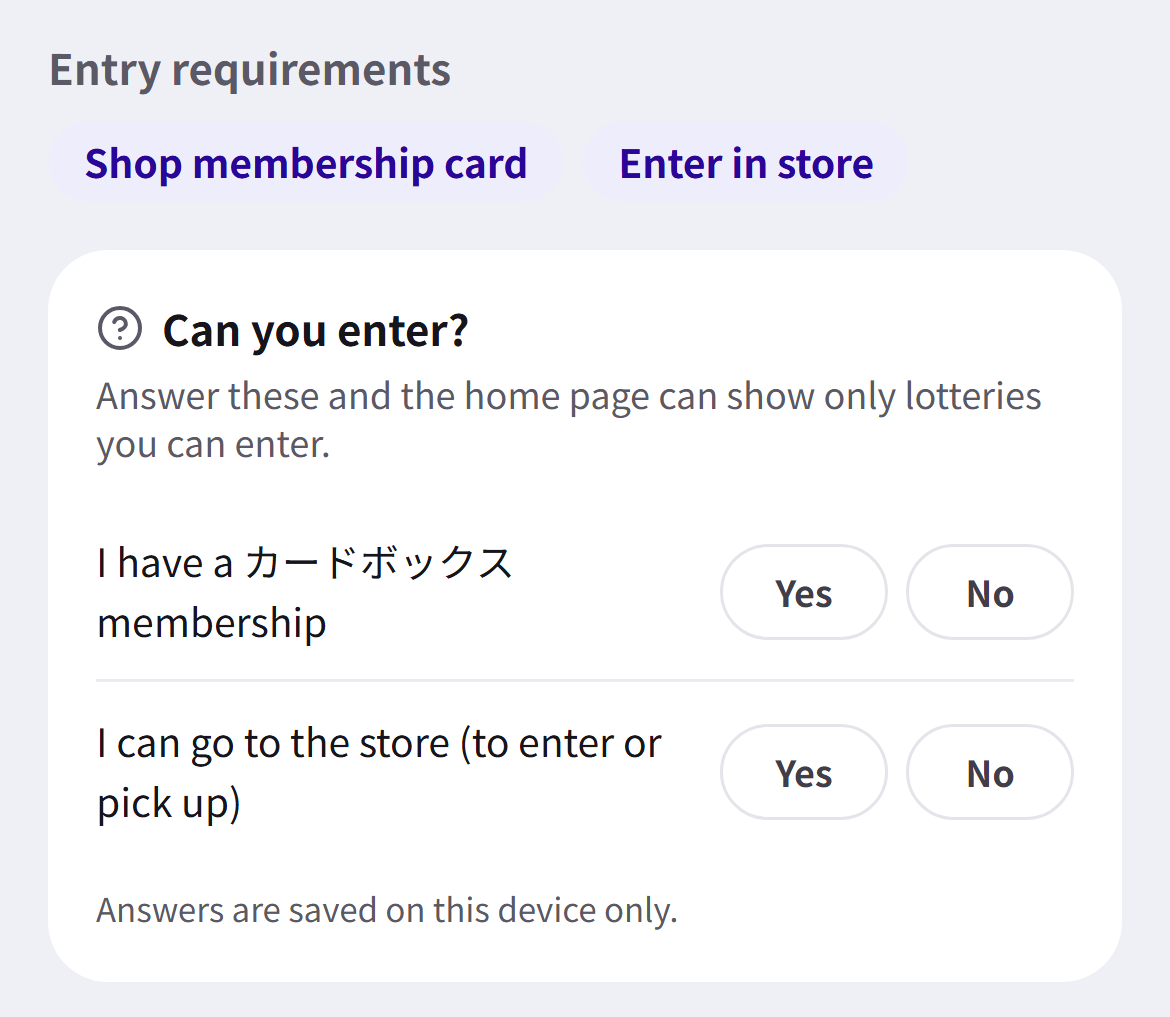
2“Entry requirements” lists conditions such as a membership card or in-store pickup. Answer “Can you enter?” and the home page's “Only ones I can enter” shows only lotteries open to you (answers stay on this device).
3“Go to entry page” at the bottom takes you to the shop's entry page. Please also check the shop's own announcement before entering.

4Spotted a mistake? Tell us from “Something wrong?” and we'll check and fix it.

5Products and prices
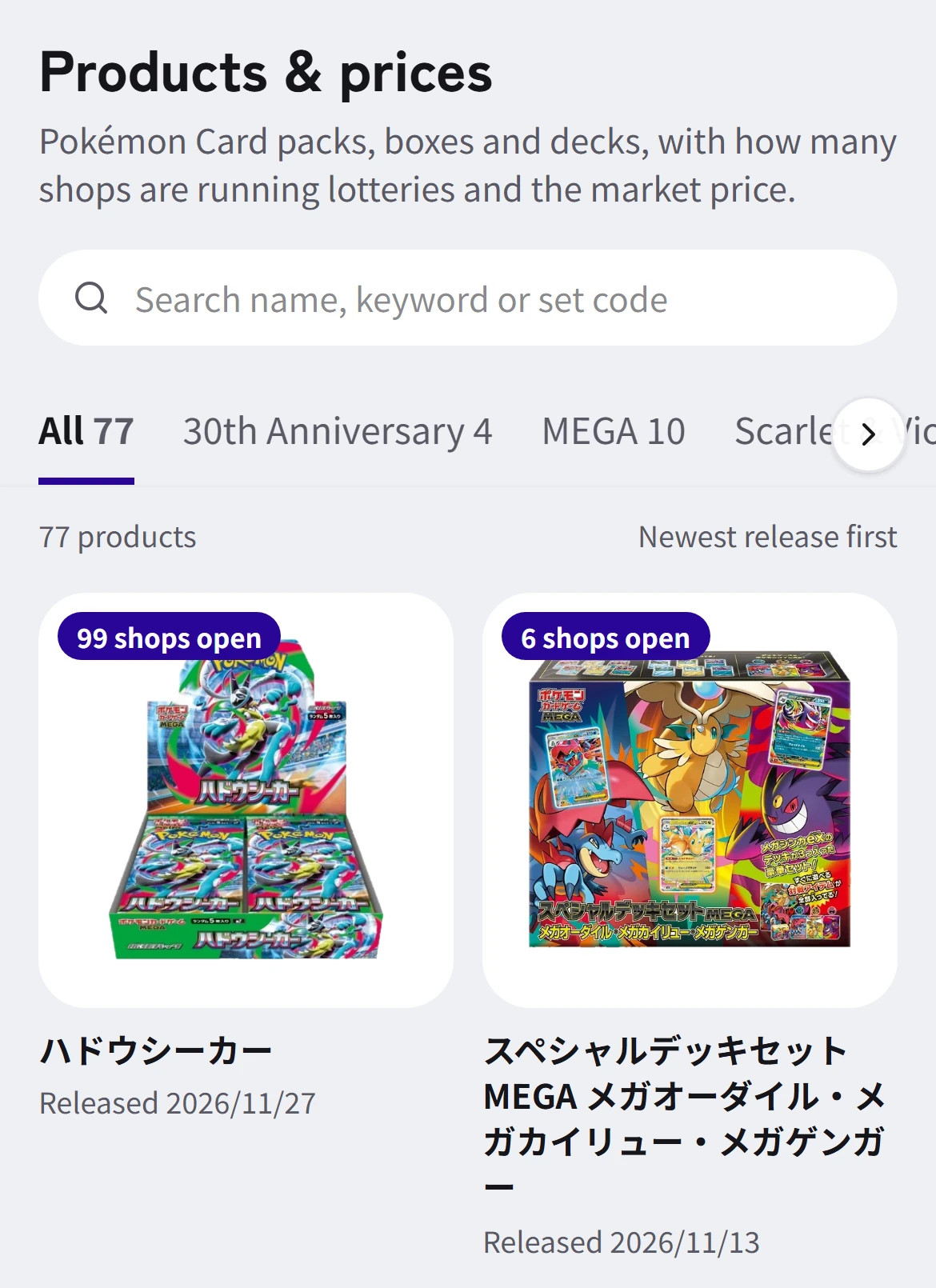
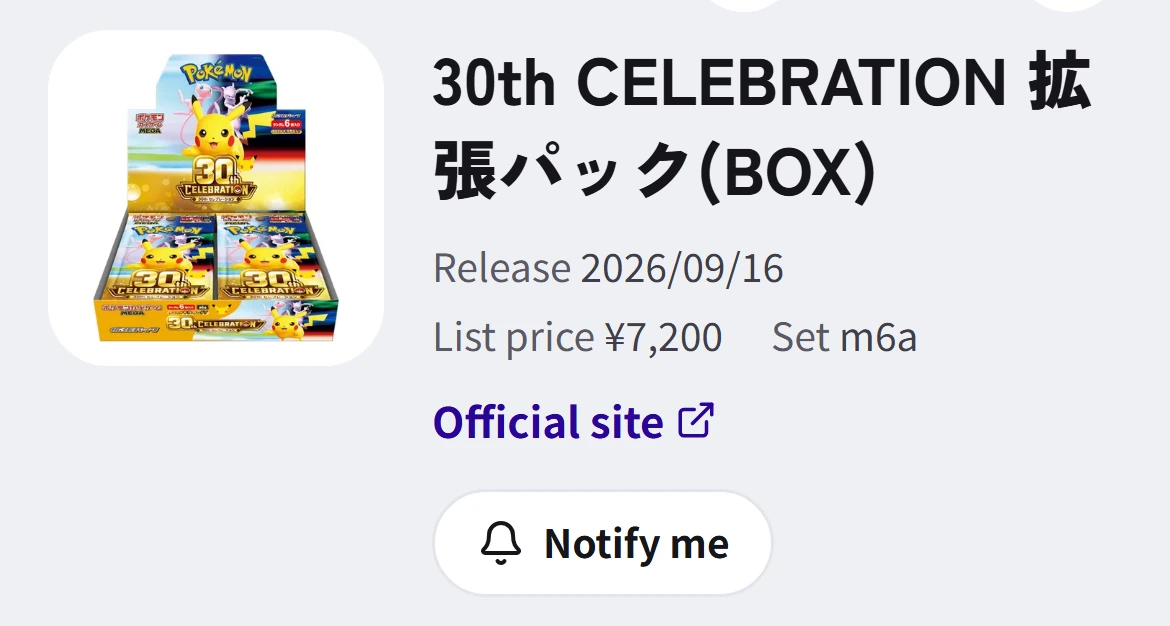
1“Products” at the bottom shows, for each product, how many shops are running lotteries and its release date. You can search by name or set code.
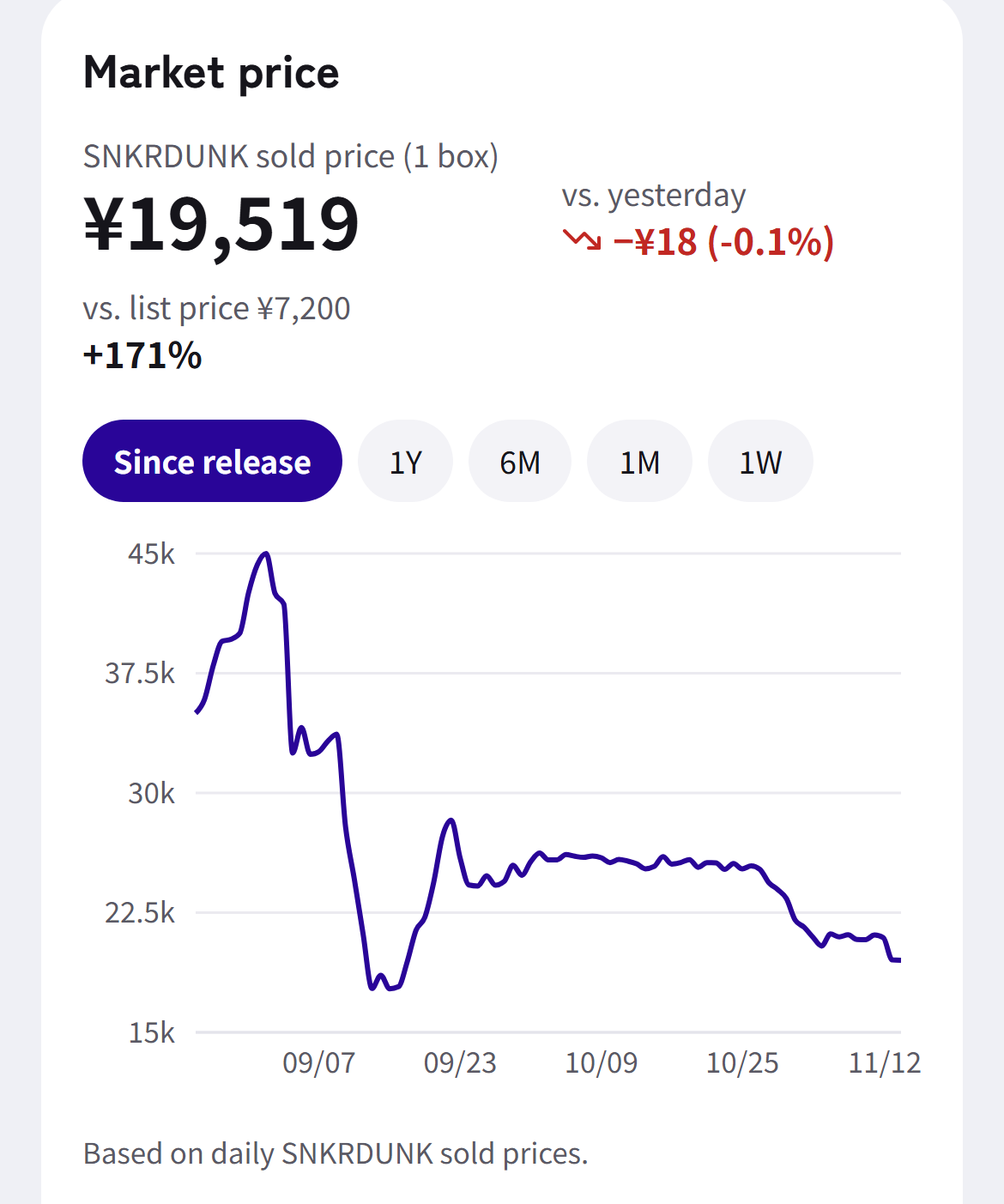
2Each product page shows the price history (SNKRDUNK sale prices), the gap to retail price and all of its lotteries.
3Tap “Notify me” on a product page to be notified of that product's new lotteries.
Track your entries
Available with a free account. Your records are visible only to you.
6Create a free account
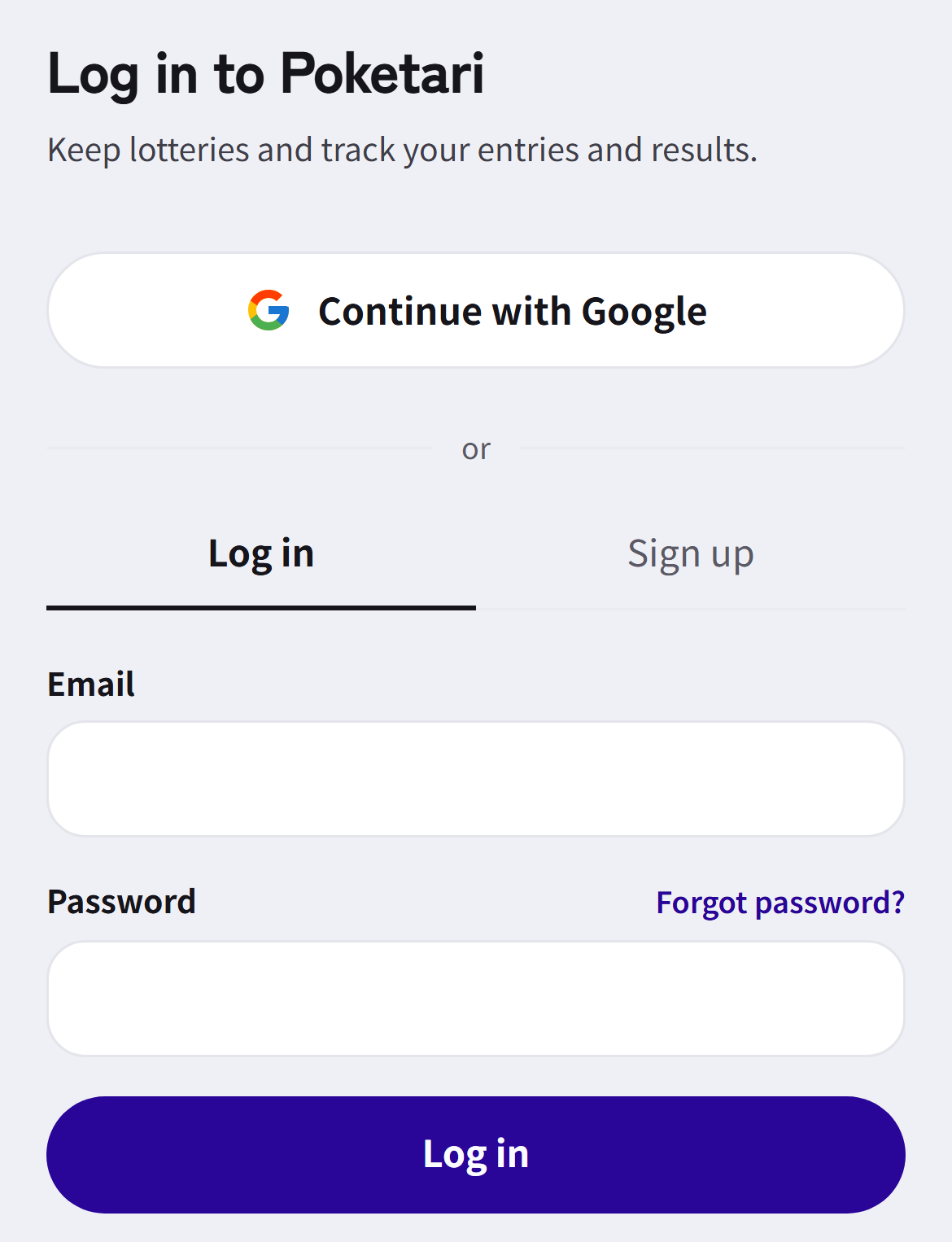
Tap “Log in” at the top right and sign up free with Google or email.
7Keep and record entriesAccount needed
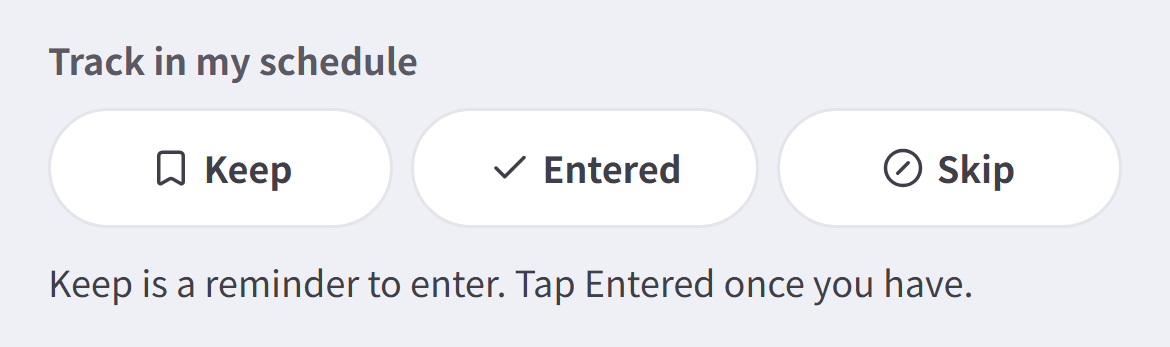
On a lottery page, under “Track in my schedule”, tap “Keep” for ones you're interested in and “Entered” once you've applied; mark ones you'll skip as “Skip”. Everything you record gathers in My schedule.
8Plan with My scheduleAccount needed
1Open “My schedule” at the bottom: at the top are your entries, wins, losses and win rate, and the calendar below marks open, close and results days. Switch the range with “2 weeks” / “Month”.
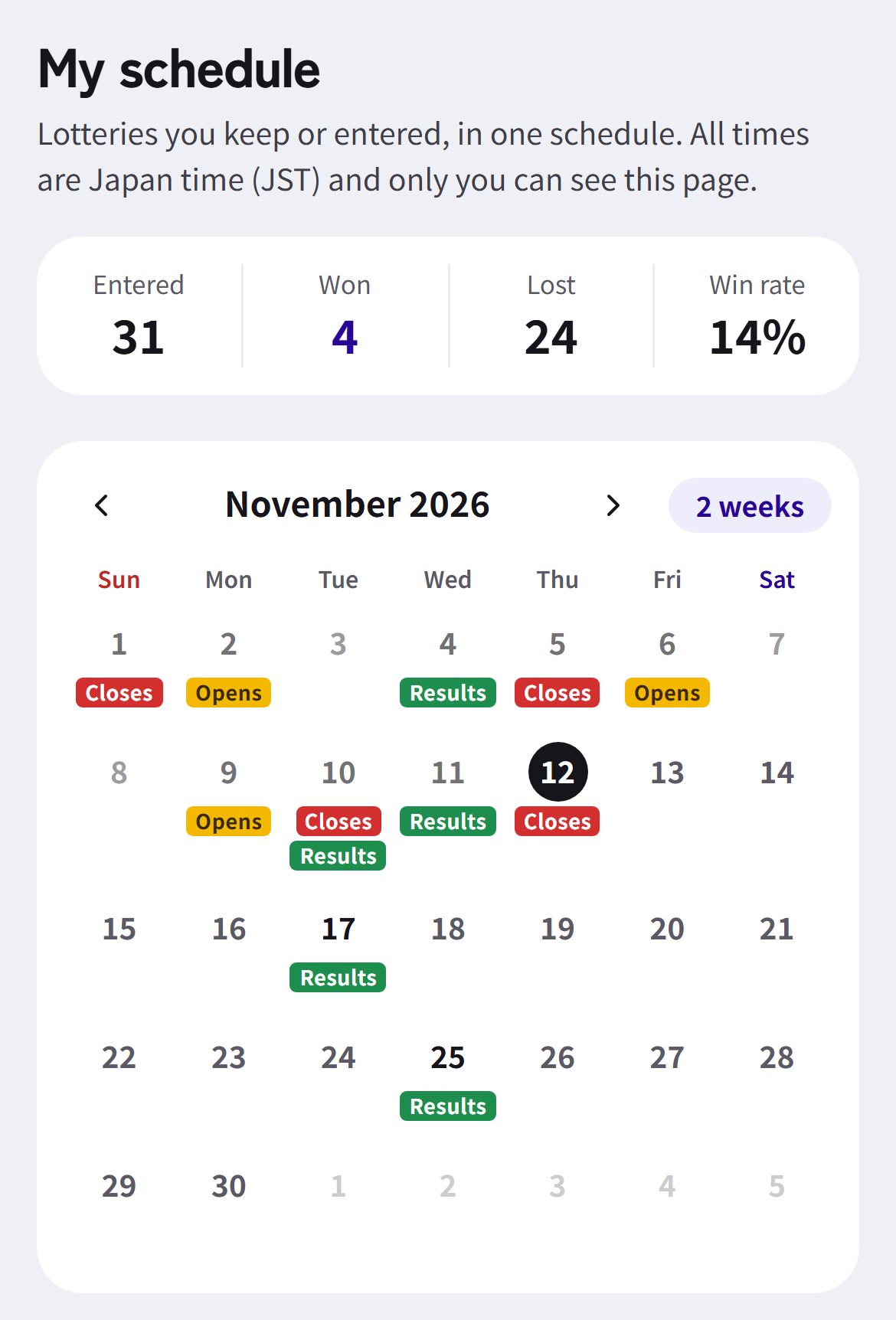
2Lotteries are grouped into “To enter”, “Waiting”, “Won” and “Lost”. Tap a row for the results time and a link to the entry page.
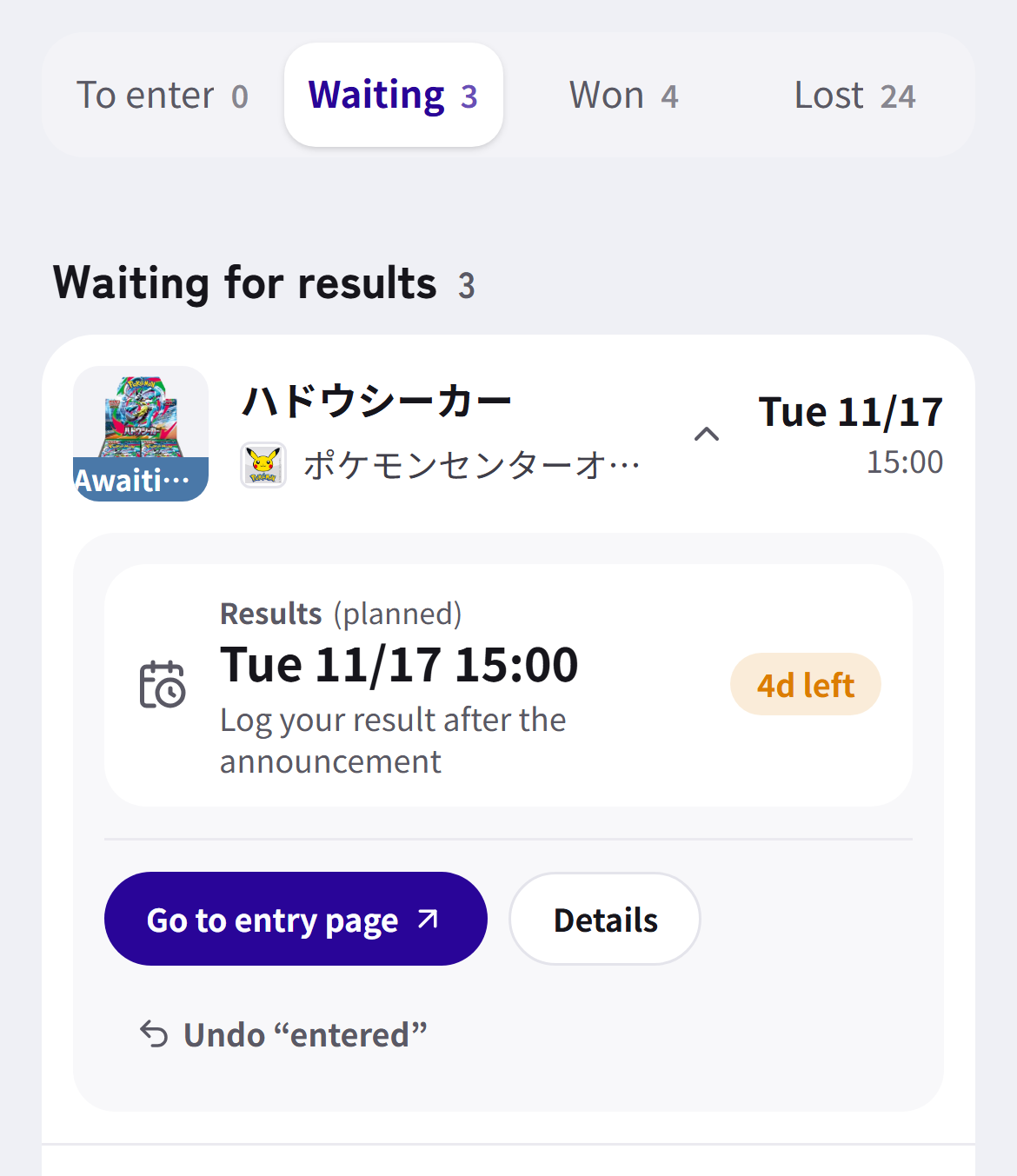
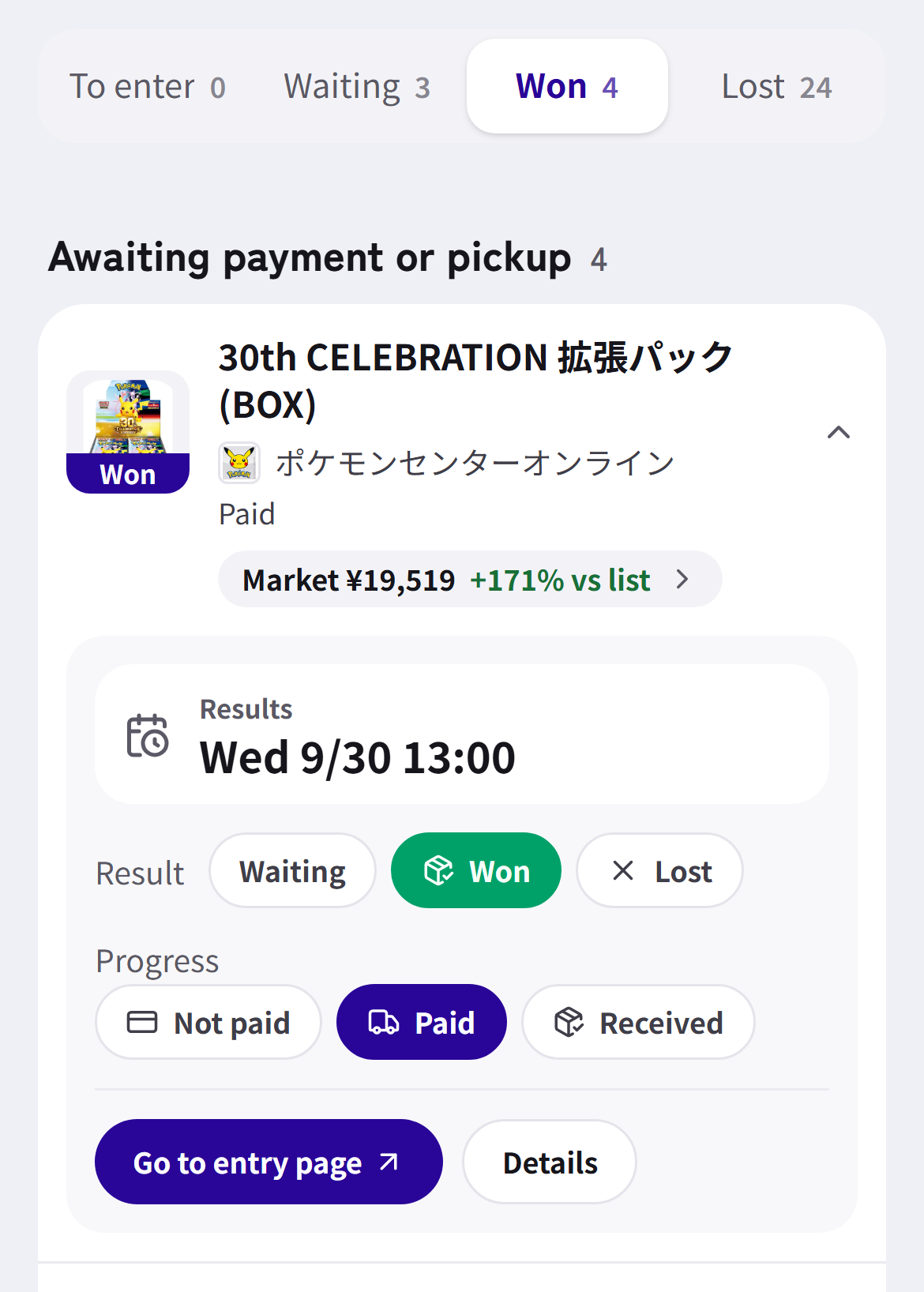
9Record wins and lossesAccount needed
1Once results are out, open the row and tap “Won” or “Lost”. For wins you can also track “Not paid”, “Paid” and “Received”, so payments and pickups aren't missed.
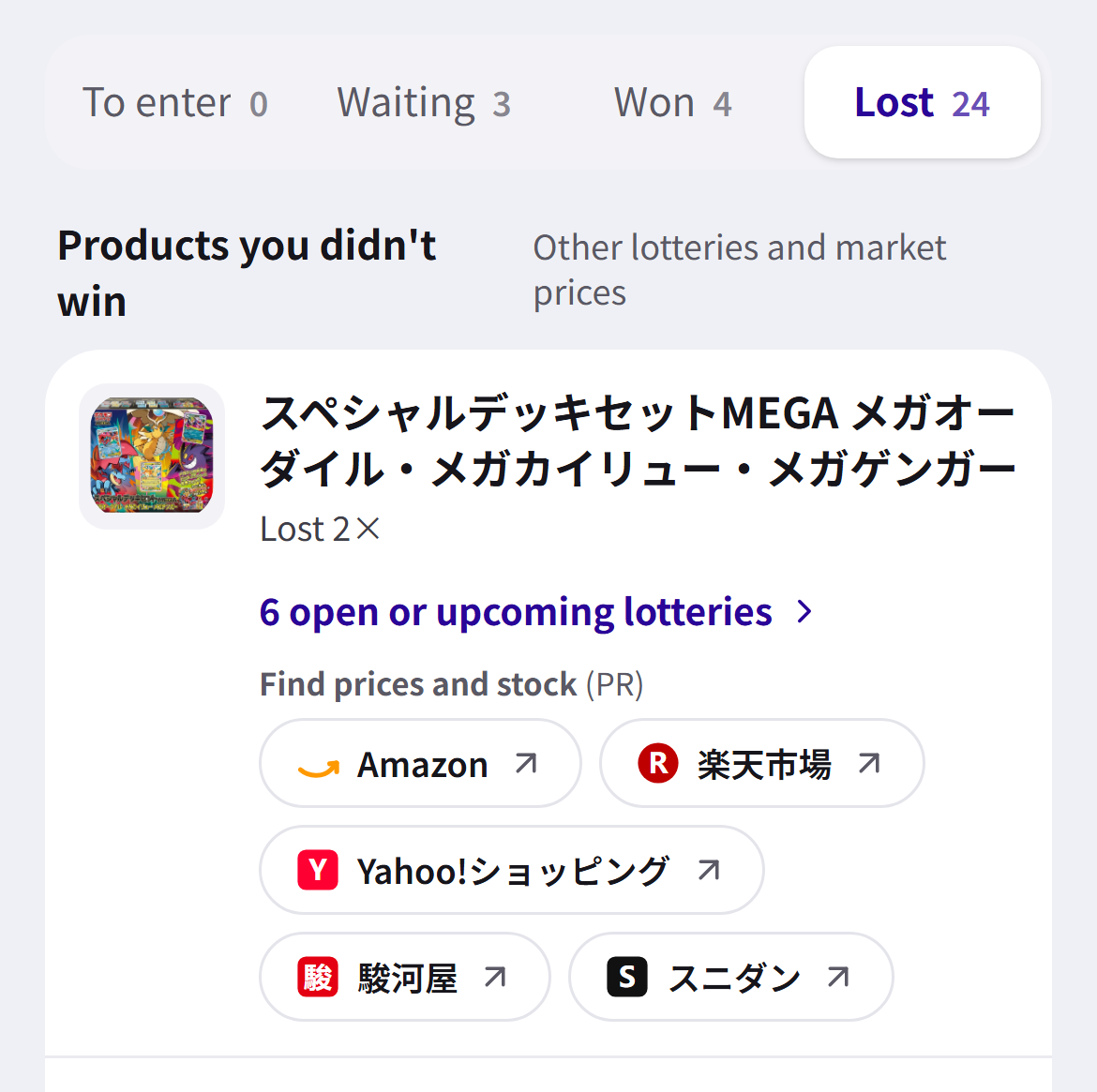
2The “Lost” tab starts with “Products you didn't win”, linking to that product's other open or upcoming lotteries and its market price.
10Save your shopsAccount needed
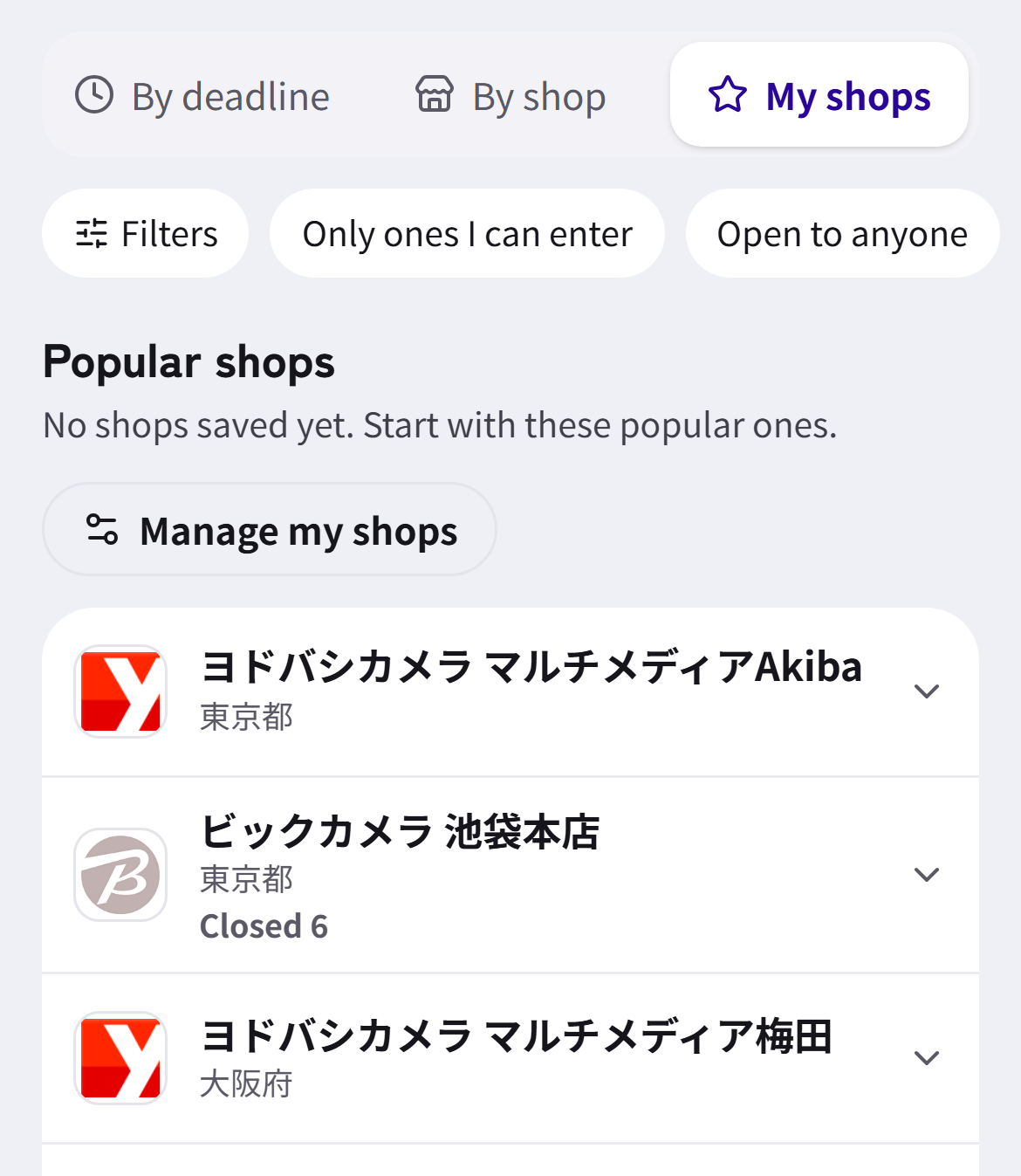
1In “My shops” below My schedule, search for the shops you visit and tap “Add”.
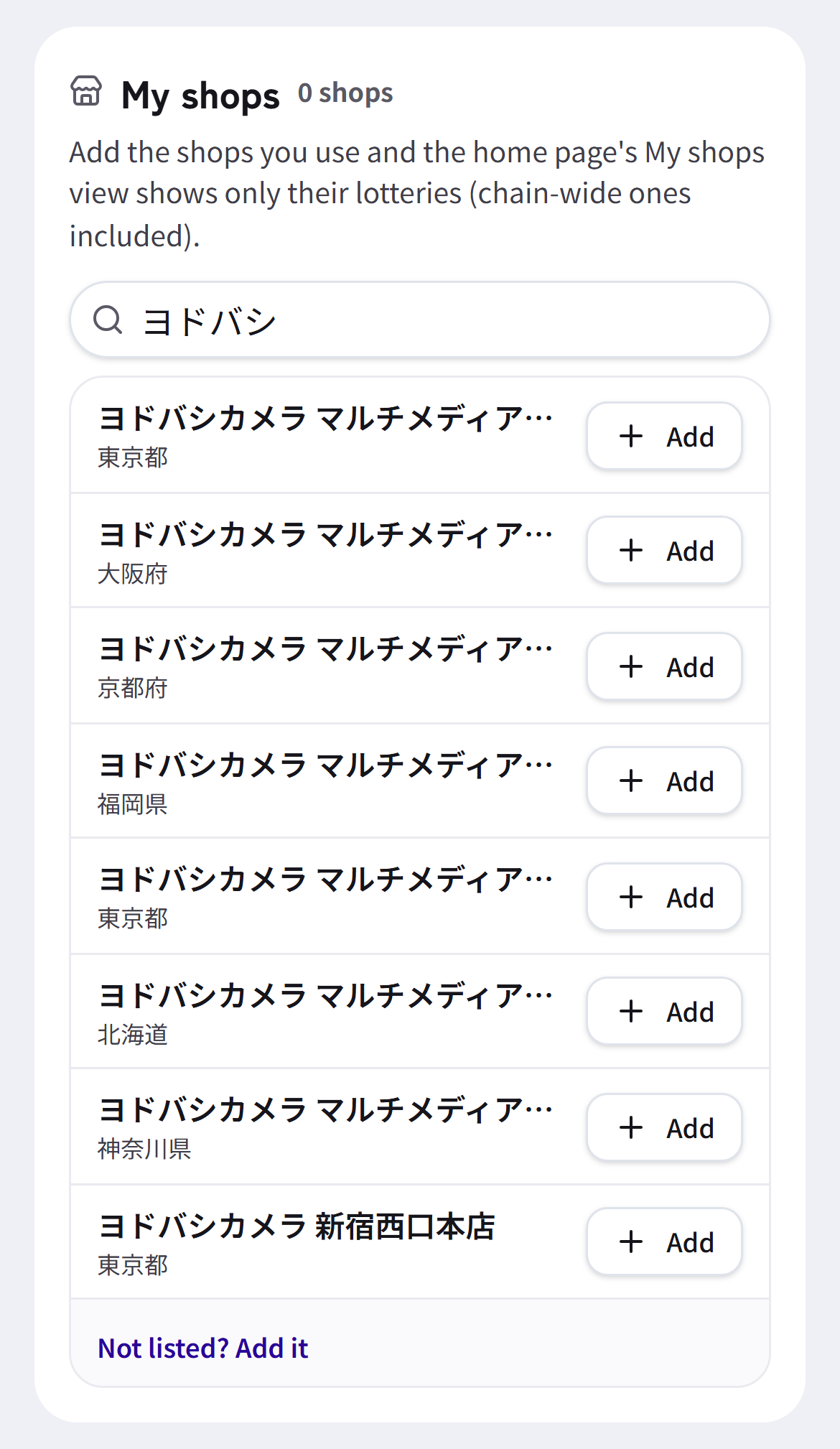
2The home page's “My shops” view then shows only those shops' lotteries (chain-wide ones included).
Never miss one
Notifications, email and your calendar remind you of deadlines and new lotteries.
11Browser notifications
1Turn on notifications in Notification settings (the ≡ menu, top right) to hear about new lotteries for products and shops you set to “Notify me”. When logged in, you also get reminders for the opening, deadline and results of lotteries you kept or entered.
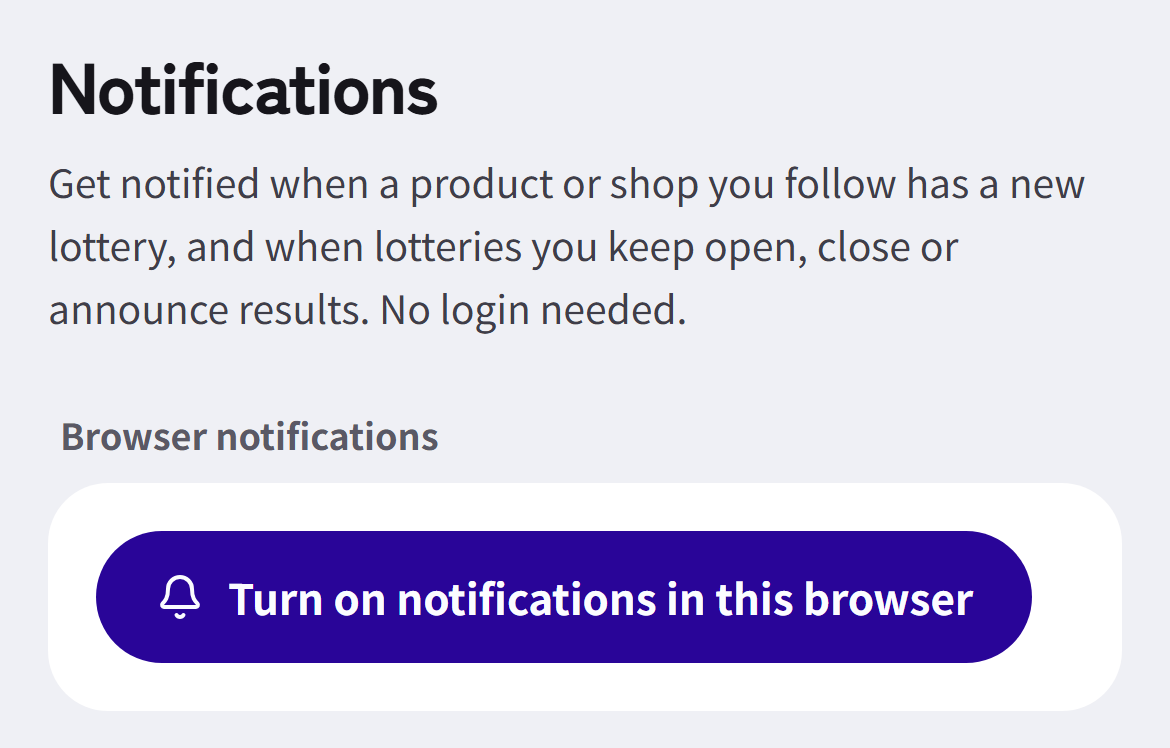
2On iPhone and iPad, use Safari's Share button → “Add to Home Screen”, then open Poketari from the home-screen icon to receive notifications.
12Morning emailAccount needed
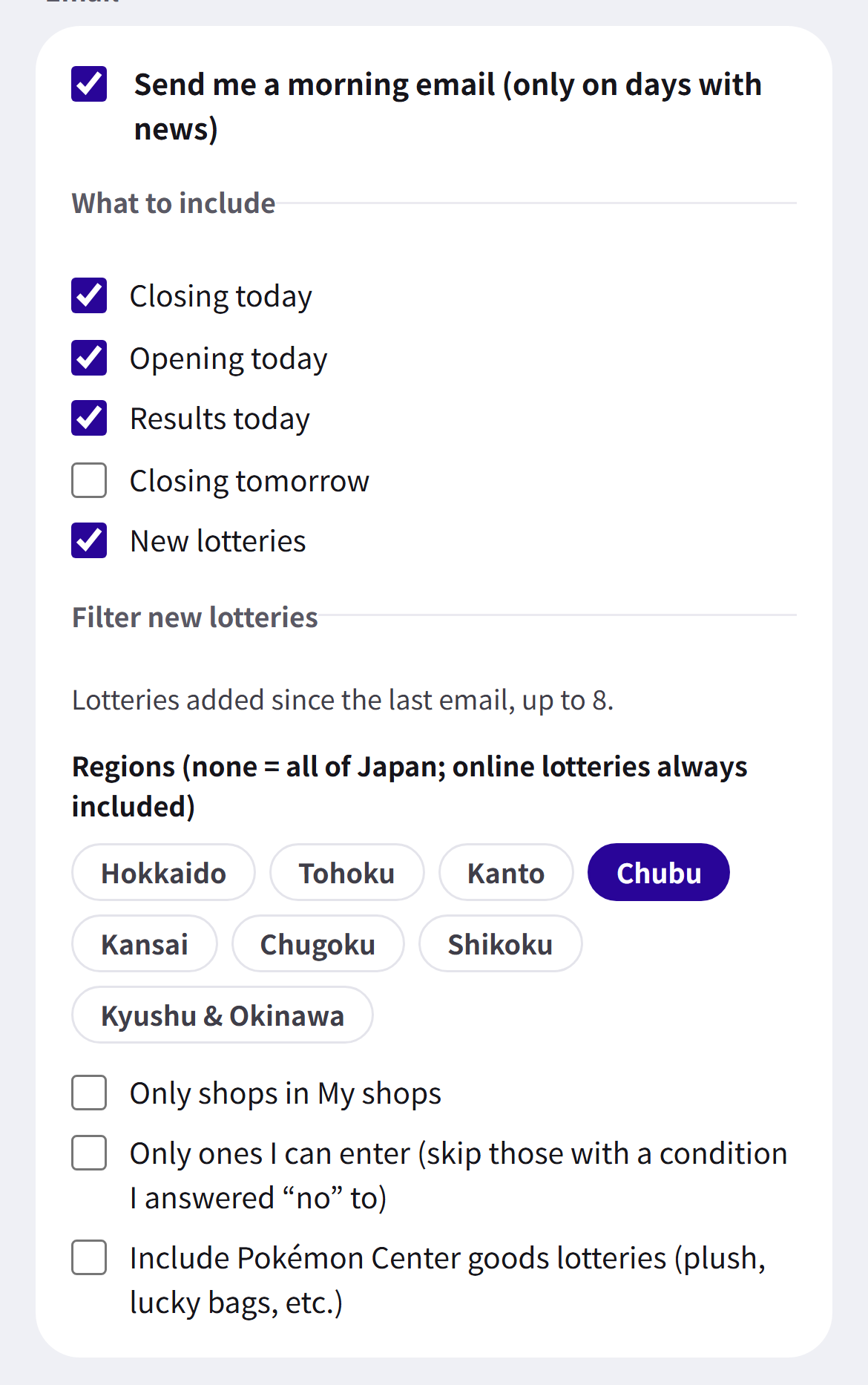
Turn on “Send me a morning email (only on days with news)” in Notification settings for a morning email with new and soon-closing lotteries. Choose what to include, which regions, and whether to limit it to your shops.
13Sync to your calendarAccount needed
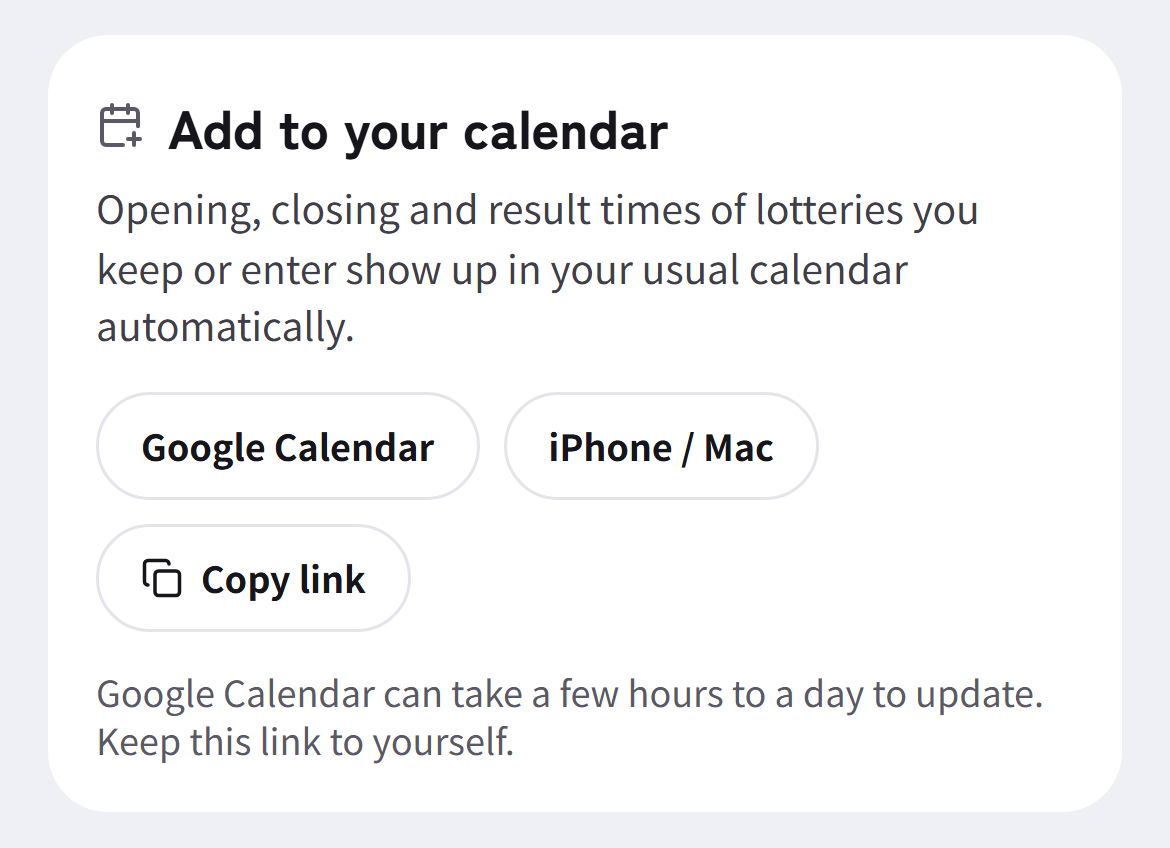
From “Add to your calendar” in Notification settings, add your schedule to Google Calendar or the iPhone / Mac calendar. Open, close and results times of kept and entered lotteries appear automatically and stay in sync. Keep this URL to yourself.
More
Initial setup, display options and getting in touch.
14Initial setup
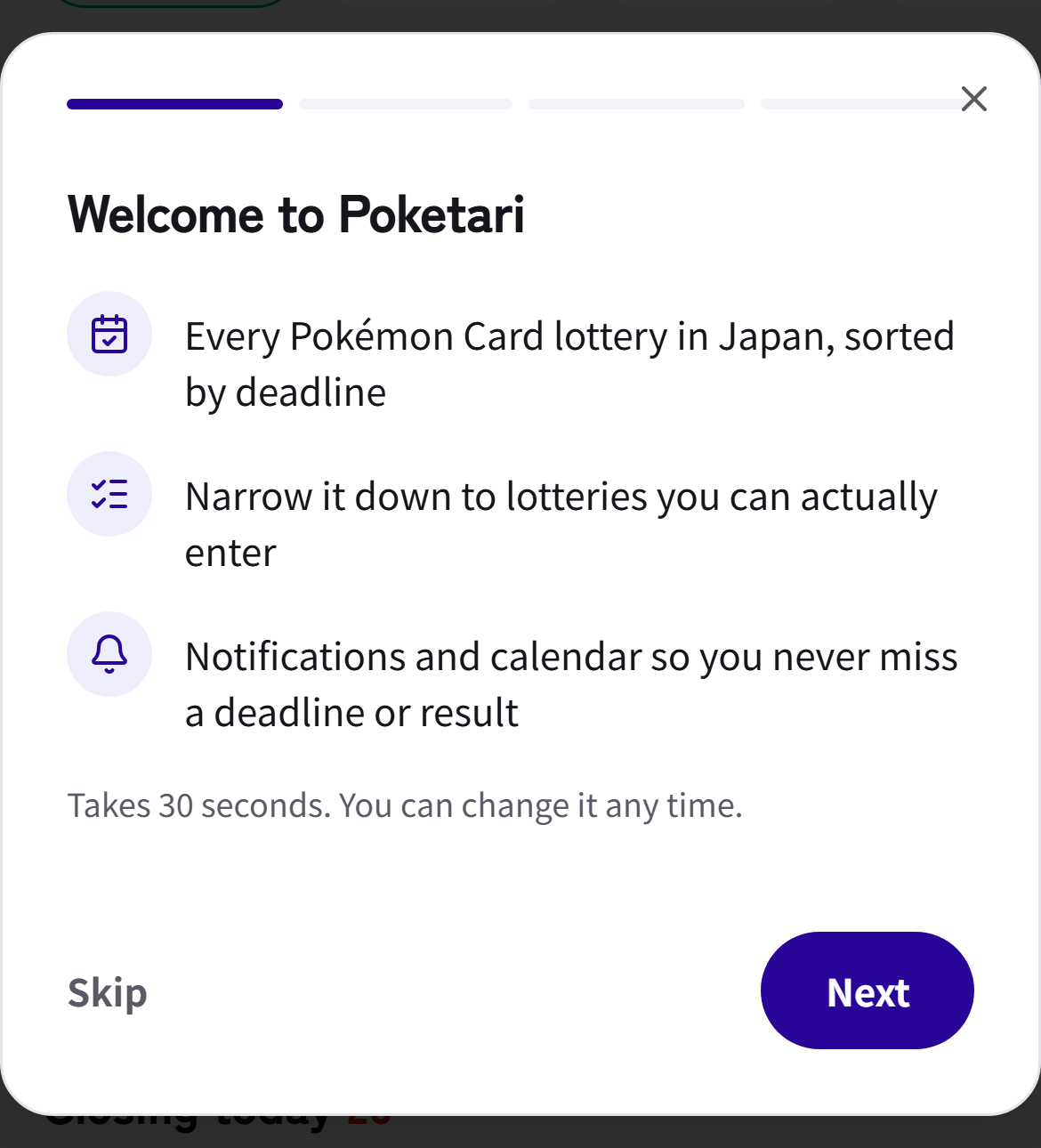
The welcome guide on your first visit sets your region, entry conditions and notifications in one go. Redo it any time with “Redo initial setup” at the bottom of this page.
15Language and theme
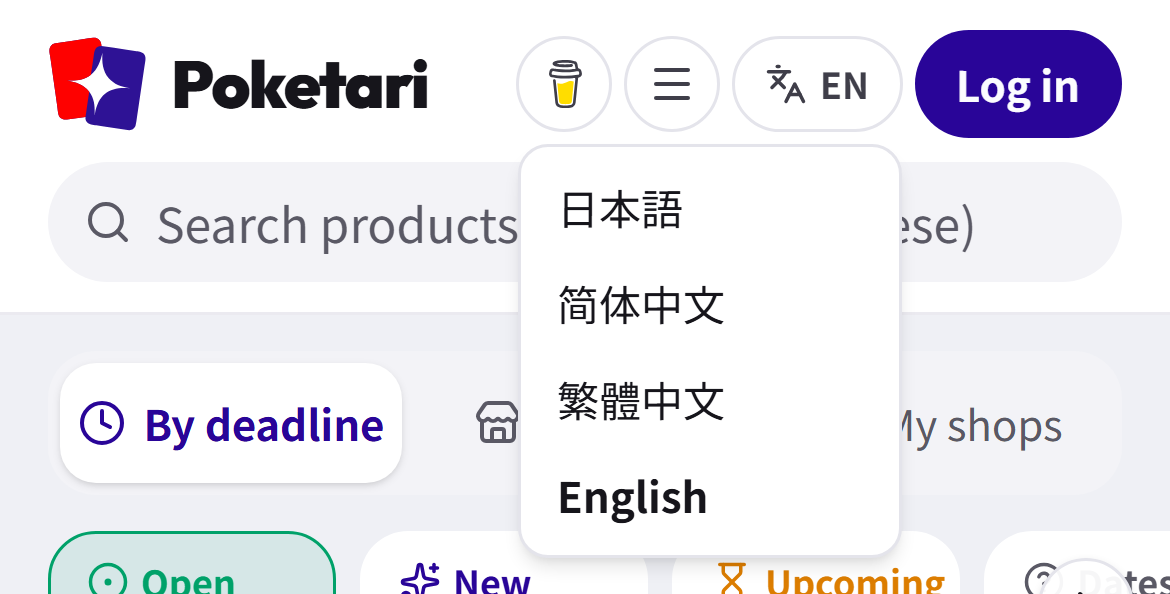
1The language button at the top right (showing “EN” and so on) switches between 日本語, 简体中文, 繁體中文 and English.
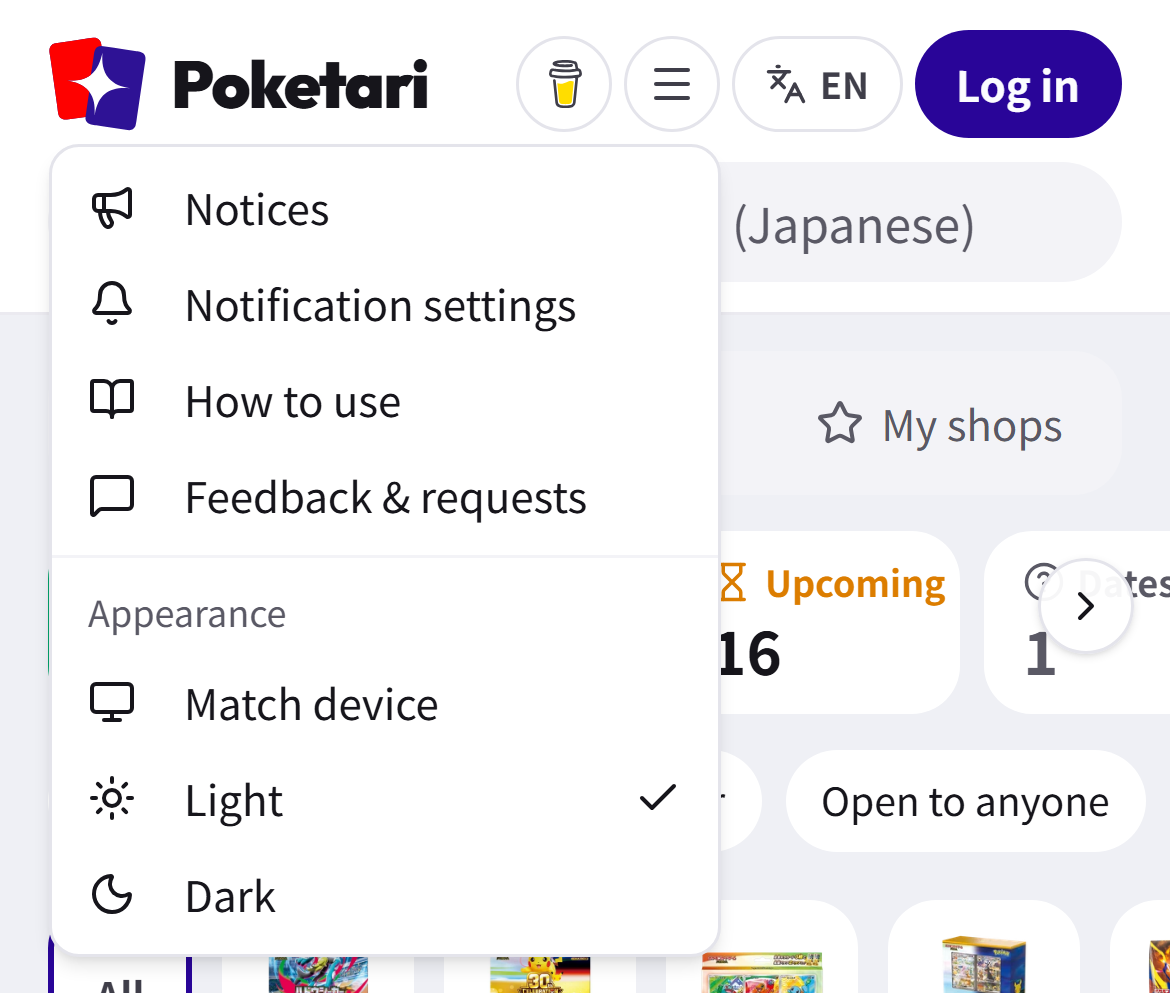
2“Appearance” in the ≡ menu at the top right switches between light and dark. The menu also opens Notices and Feedback & requests.